Terminal setup
Bare terminal can be quite challenging to navigate, but there are a bunch of nice to haves that can make it both more aesthetic, but also more efficient.
tmux and Herdr (the new kid in town) get their own page, and so does Neovim. We’re not going to cover installing oh-my-zsh itself as it's so ubiquitous, but the plugins I use with it are below. I (Kiyam) typically manage my dotfiles with chezmoi which is covered later on, but if you don’t want to read all of the below feel free to just look at my dotfiles repo: Kiyam/dotfiles
Terminal emulator: Ghostty
Link: ghostty.org
Fast, native, and needs very little config. Mine is the whole file:
theme = catppuccin-macchiato.conf
font-family = SpaceMono Nerd Font
font-size = 16
shell-integration-features = ssh-terminfo,ssh-env
clipboard-read = allow
clipboard-write = allow
- A Nerd Font is what makes the icons from
eza --icons, the prompt and tmux show up properly instead of as boxes. Any Nerd Font works. For mine, runbrew install --cask font-space-mono-nerd-font. ssh-terminfo,ssh-envfixes the classic "unknown terminal type" / broken backspace problem when you SSH into a server that has never heard of Ghostty.ssh-terminfoinstalls Ghostty's terminfo on the remote host, andssh-envfalls back to a compatibleTERMwhen that isn't possible.clipboard-read/write = allowlets programs use the clipboard through OSC 52 without a prompt every time. This is how copying in Neovim or tmux on a remote machine ends up in the Mac's clipboard (see the Neovim and tmux pages).
Shell: zsh
Keep the home folder tidy with ZDOTDIR
Later on I mention keeping zsh config in ~/.config/zsh/ rather than ~/. zsh always reads ~/.zshenv first, before it knows about any other directory, so that one file has to stay in the home folder. Its only job is to point zsh somewhere else:
After that, zsh looks for .zshrc (and friends) in ~/.config/zsh/.
Prompt: Spaceship
Link: spaceship-prompt.sh
Spaceship is a prompt that shows git branch and status, the language versions in use, execution time, etc., only when they're relevant.
oh-my-zsh plugins
plugins=(
  git
  urltools
  bgnotify
  zsh-autosuggestions
  zsh-vi-mode
  zsh-syntax-highlighting
)
source $ZSH/oh-my-zsh.sh
git: lots of short git aliases (gst,gco,gp, …).urltools:urlencode/urldecodeon the command line.bgnotify: sends a desktop notification when a long-running command finishes and the terminal isn't focused. Great for builds.zsh-autosuggestions: suggests the rest of the command in grey from your history. Press → to accept.zsh-vi-mode: proper vim keybindings on the command line (Esc, thenb,w,ciw, …).zsh-syntax-highlighting: colours commands as you type them, and turns a typo'd command red before you hit enter.
The first three ship with oh-my-zsh. The last three need cloning into the custom plugins folder first:
git clone https://github.com/zsh-users/zsh-autosuggestions "$ZSH_CUSTOM/plugins/zsh-autosuggestions"
git clone https://github.com/zsh-users/zsh-syntax-highlighting "$ZSH_CUSTOM/plugins/zsh-syntax-highlighting"
git clone https://github.com/jeffreytse/zsh-vi-mode "$ZSH_CUSTOM/plugins/zsh-vi-mode"
Tip
zsh-vi-mode sets up its own keybindings when it loads. Load anything that binds keys, such as fzf's Ctrl+T / Alt+C and Atuin's up arrow, after source $ZSH/oh-my-zsh.sh, as in my .zshrc, so it doesn't get overwritten.
Completions: carapace
Link: carapace.sh
Tab completion for hundreds of CLI tools (git, docker, kubectl, gh, …), including descriptions of each flag. With bridges, it also falls back to zsh, fish, bash and inshellisense completions for anything it doesn't know itself.
export CARAPACE_BRIDGES='zsh,fish,bash,inshellisense'
zstyle ':completion:*' format $'\e[2;37mCompleting %d\e[m'
source <(carapace _carapace)
The zstyle line adds a dim "Completing …" header above each group of completions.
Must have tools
-
zoxide- a replacement for thecdcommandLink: github.com/ajeetdsouza/zoxide
It can be rebound to replace the
cdcommand, but by default it binds itself toz. I rebind it, socditself gets the memory:Its main uses are being able to remember paths of folders you have previously cd’ed to. So for example on hypatia for the user klin, as they often visit /share/rcif2/klin/kids_legacy/sim_output, instead of typing cd that full path, they can just type
cd sim_outputand it will take them directly to the most visited path instead. This is the main use case. -
eza- a replacement forlswith colours and highlighting.Link: github.com/eza-community/eza/tree/main
One can alias it to ls so you don’t have to get used to typing eza instead of ls and setup with some default options. So in a .zshrc file one can put
-
bat- a replacement forcatso you can browse text files in terminal with syntax highlighting without having to open the file with vim or emacs or something.Link: github.com/sharkdp/bat
It will also let you scroll through the text file with vim keybinds, so press j to scroll down, k to scroll up etc.
The real power however comes when you combine this with
fdandfzf. -
fd- an alternative to thefindcommand. It’s like find, but better basically.Link: github.com/sharkdp/fd
-
fzf- a great terminal fuzzy finder utility. It lets you basically fuzzy search for files.Link: github.com/junegunn/fzf
One can use this tool simply by typing
fzfin the terminal after installation. But a better way would be to use thecontrol + Thook oralt + cwhich for GB mac users is the same for fzf as pressingesc + c. Now, we really should set this up to also make use ofbatandezawhich would allow us to scroll through our files like in the screenshot below.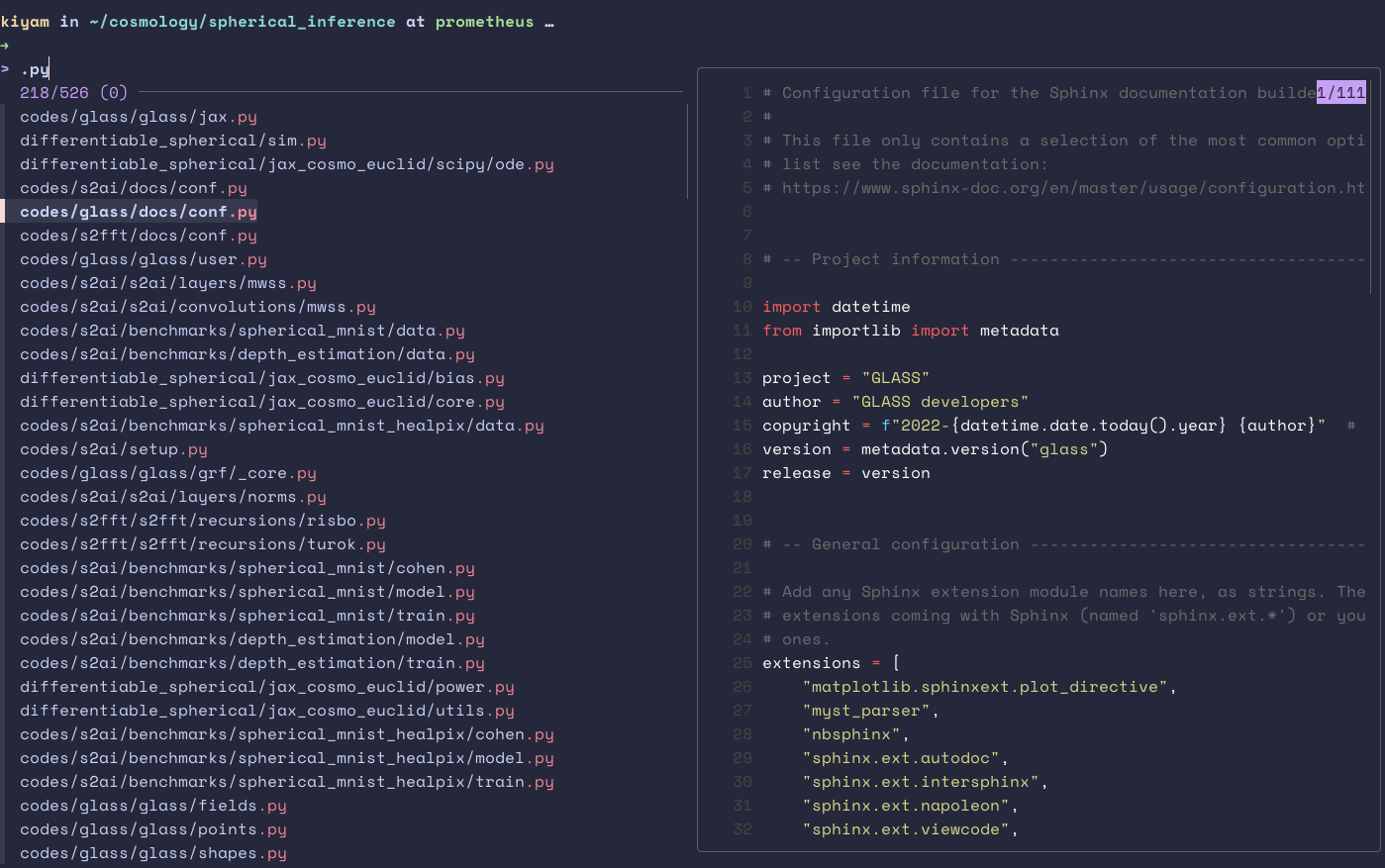
To setup this up, in either your .bashrc or .zshrc file, just add the following:
# -- Use fd instead of fzf --
export FZF_DEFAULT_OPTS=" \
--color=bg+:#363a4f,bg:#24273a,spinner:#f4dbd6,hl:#ed8796 \
--color=fg:#cad3f5,header:#ed8796,info:#c6a0f6,pointer:#f4dbd6 \
--color=marker:#f4dbd6,fg+:#cad3f5,prompt:#c6a0f6,hl+:#ed8796"
export FZF_DEFAULT_COMMAND="fd --hidden --strip-cwd-prefix --exclude .git"
export FZF_CTRL_T_COMMAND="$FZF_DEFAULT_COMMAND"
export FZF_ALT_C_COMMAND="fd --type=d --hidden --strip-cwd-prefix --exclude .git"

# Use fd (https://github.com/sharkdp/fd) for listing path candidates.
# - The first argument to the function ($1) is the base path to start traversal
# - See the source code (completion.{bash,zsh}) for the details.
_fzf_compgen_path() {
  fd --hidden --exclude .git . "$1"
}

# Use fd to generate the list for directory completion
_fzf_compgen_dir() {
  fd --type=d --hidden --exclude .git . "$1"
}

# fzf options to make use of bat previews
export FZF_CTRL_T_OPTS="--preview 'bat -n --color=always --line-range :500 {}'"
export FZF_ALT_C_OPTS="--preview 'eza --tree --color=always {} | head -200'"

# Advanced customization of fzf options via _fzf_comprun function
# - The first argument to the function is the name of the command.
# - You should make sure to pass the rest of the arguments to fzf.
_fzf_comprun() {
  local command=$1
  shift

  case "$command" in
    cd)           fzf --preview 'eza --tree --color=always {} | head -200' "$@" ;;
    export|unset) fzf --preview "eval 'echo $'{}"         "$@" ;;
    ssh)          fzf --preview 'dig {}'                   "$@" ;;
    *)            fzf --preview "bat -n --color=always --line-range :500 {}" "$@" ;;
  esac
}
Notice at the end there’s that segment about
_fzf_comprun(). That basically getsfzfand a few other tools to kick in when using tab completion. The stuff at the start about colour is just for the catppuccin colour scheme. -
Atuin- scrollable, searchable shell history. Honestly, this is thing is a game changer…Link: github.com/atuinsh/atuin

By pressing the up arrow, one gets presented with a searchable list of my shell history. The gif from their github repo is what’s pasted up above.
-
Chezmoi- Now all of this is a lot to manage, especially as each tool has a thing to go into your .zshrc files etc. So a great way to manage these config files that live in your home directory of~/is to manage them with a tool likechezmoi. There are a few other tools that accomplish something similar, but I likechezmoidue to its ability to handle machine to machine differences. You can configure it write different config files to different types of machines. Like on a mac we have homebrew, so things can be located with brew, whereas on a regular linux machine one would need different options. Then on a cluster where one doesn’t have root access, a lot of software might get installed to ~/.local/usr/bin instead. Those differences can all be handled by chezmoi.Link: www.chezmoi.io
Another note, for config files, like a .zshrc file, typically this would live in
~/.zshrc, but, thanks to the whole$XDG_CONFIG_HOMEconvention, which typically points to~/.config/, we can store files in a .config folder instead making the home folder~/much neater. So a .zshrc file could live instead at~/.config/zsh/.zshrc. Tmux however is a bit odd in that it needs~/.config/tmux/tmux.confwithout the usual dot in front of the tmux.conf file.As a headstart, this is my dotfiles repo, and you can see how some templating has been handled for use across hypatia and a few other linux machines/mac etc: Kiyam/dotfiles
Smaller swaps
Same idea as eza and bat: better versions of everyday tools.
-
dufreplacesdf. It shows disk usage as a readable coloured table. I alias it and hide the snap/squashfs mounts that clutter the output on Ubuntu: -
ripgrep(rg) replacesgrep -r. It's much faster and skips anything in.gitignoreby default. btopreplacestop/htop. It shows CPU, memory, disks, network and processes in one screen.lazygitis a git TUI. Staging individual lines, interactive rebases and resolving conflicts are much nicer than on the bare command line.vividgeneratesLS_COLORS, which sets the coloursezaand zsh's completion menu use for file types. See the next section.
One colour scheme everywhere
Everything uses Catppuccin Macchiato, so the terminal, prompt, file listings, fuzzy finder, tmux and editor all match:
| Where | How |
|---|---|
| Ghostty | theme = catppuccin-macchiato.conf |
File colours (eza, completions) |
export LS_COLORS="$(vivid generate catppuccin-macchiato)" |
| fzf | The FZF_DEFAULT_OPTS colours above |
| tmux (old setup) | The catppuccin/tmux plugin with @catppuccin_flavor "macchiato" |
| Neovim | colorscheme = "catppuccin-macchiato" |
| btop, Herdr | Their TTY / terminal themes, which inherit Ghostty's palette |
The simplest trick is the last row: wherever a tool offers a "use the terminal's colours" theme, pick it, and it follows Ghostty automatically.